Recent Updates Page 51 Toggle Comment Threads | Keyboard Shortcuts

  • Unknown's avatar

    hilalkoyuncu 8:15 pm on March 21, 2011 Permalink | Reply  

    Emotion Catcher+ Bathroom Electricity Minder 

    Originally I wanted to make a GSR sensor and connect data from my self. I was just going to wirewrap the sensor to the XBee and use a lithium coin battery and wear it. I tried it in many different ways but the connections were not secure.

    So I had to go with the bulkiest possible(most durable) version(below):

    It was pretty heavy but I spent 10 hours in it, mostly sleeping.

    The data I collected was fluctuating a lot so for the sake of accuracy, aesthetics and time, I had to put this project in the back burner.

    Instead I collected data from our bathroom. By using my towel spy from the previous bathroom project, I collected data that was triggered by a light sensor, indicating wether the bathroom was occupied.

    I calculated how much “time=money ” we spend merely by being in the bathroom based on our ConEd Bill.

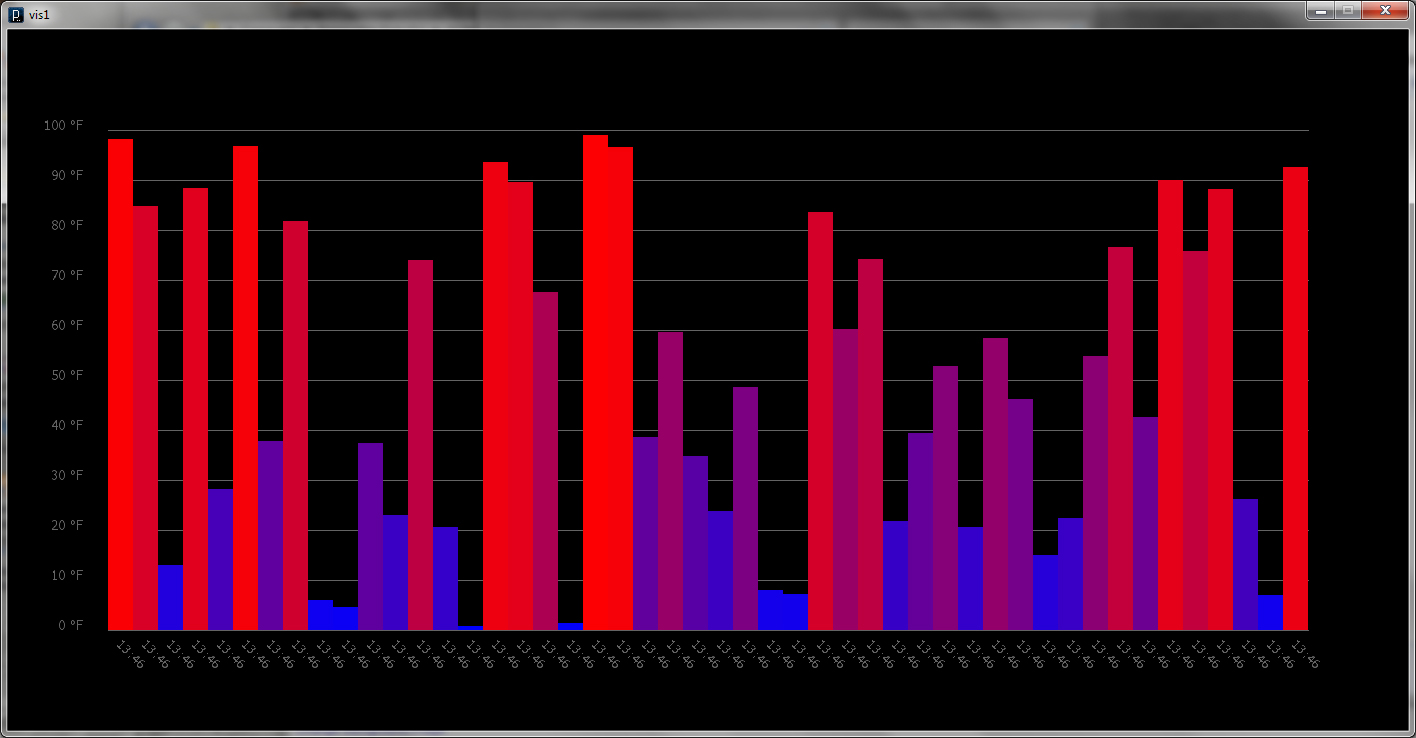
    ( 0.0003 cents/sec lighting a 100watts bulb). I saved the data as string on a text file and visualized it realtime:

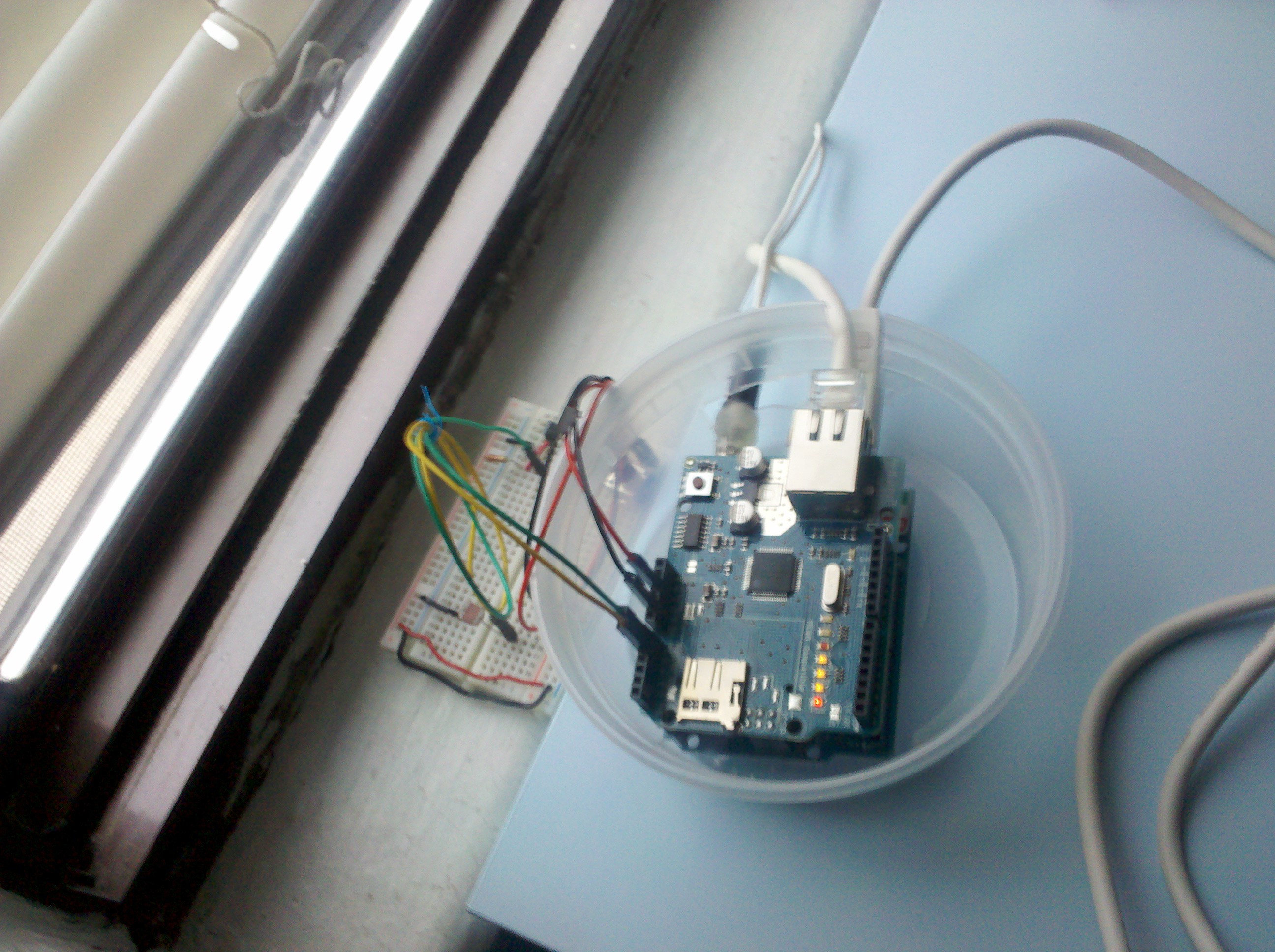
    I have used three 9V batteries and finally got a wall charger and added my arduino in the box via which I supplied the device with power cause I didn’t have another XBee USB cable.

    For me this visualization was  very effective based on the reactions of my roommates. Seeing numbers directly seems to have an impact on the user.

    I had many many disconnections over the course of three days.

    The reasons were:

    -battery died.

    -someone dropped the towel.

    -my computer shut down.

    -my coordinator Xbee got disconnected.

    -overwrote the collected data by rerunning the Processing sketch.

    Things I have learned:

    -Don’t rely on a computer, use an ethernet shield or a data logger via arduino to collect the data.

    -Power up the device with a wall charger (have an extra XBee cable to attach the device to it!)

    -Secure the device firmly so it wont get disconnected in anyway.

    Here is a demo video of the process:

    and Here is the code:

    (More …)

     
  • Unknown's avatar

    Bree 7:50 pm on March 21, 2011 Permalink | Reply
    Tags: , data visualization, processing, sensors, sound   

    The story of an Hour 

    Sooooooooooooooo….

    Since I was using a microphone as my input and was sampling every 100 microseconds, then updating to a googledocs spreadsheet every two seconds… one day’s worth of data maxed out 200,000 cells in my sheet. Which led me to taking data for one hour only.

    I hooked up my mic as the input to the arduino and took an average every 5 miliseconds, wrote the arduino input to serial in single bytes, then wrote the information from processing to google spreadsheets.

    It worked…kind of? I am not sure if the arduino and the processing talked together accurately, and I should rework that. Another thing I should try to do is use the Xbee directly (without arduino), as a few people have suggested.

    Anyway, here is the sound scape visualized over an hour.

    And the code (there are three main pieces)

    (More …)

     
  • Unknown's avatar

    minho 6:29 pm on March 21, 2011 Permalink | Reply  

    visualizing temperature 

    (More …)

     
    • Yury Gitman's avatar

      Yury Gitman 7:45 pm on March 21, 2011 Permalink | Reply

      Beautiful visualization.

  • Unknown's avatar

    lpercifield 3:48 pm on March 21, 2011 Permalink | Reply  

    Temperature Visualization 

    After collecting LOTS of sensor data I realized that I wanted to create a visualization that would allow each data point to be represented individually. In the thought process I said to my self “Self, its raining data”. This is how I came up with the idea to visualize the data as rain. Each rain drop represents one temperature reading from my arduino. The rain drops decrease in size and opacity with temperature.

    Since this blog is eating my html tags here is the link.

     
  • Unknown's avatar

    Lee 3:44 pm on March 21, 2011 Permalink | Reply  

    Data logging and visualizing temperature 

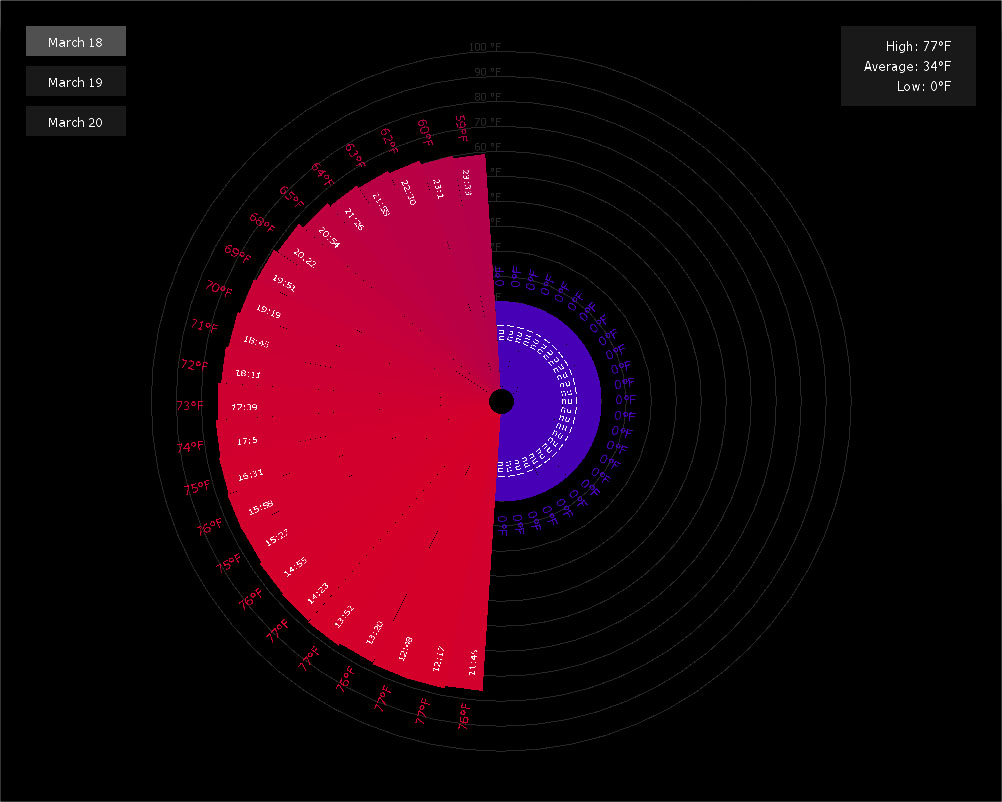
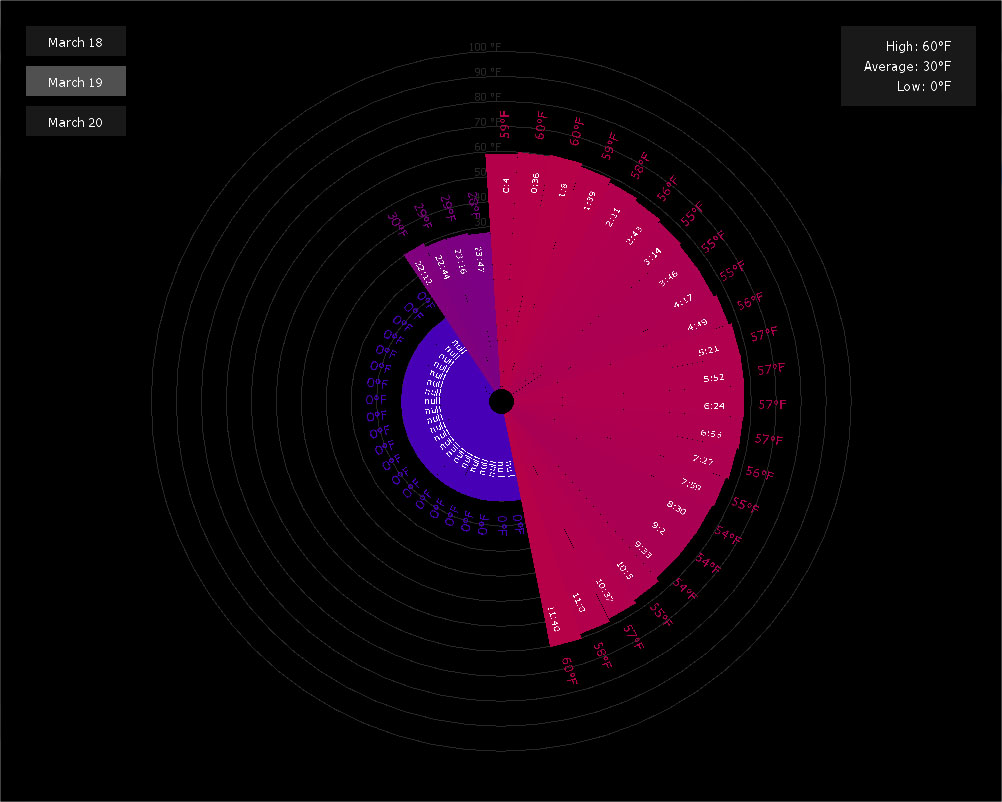
    Second iteration. Now the data is logged and saved to text files for visualizing later and I’ve experimented with a circular graph. Temperature is sample and averaged over half hour periods, so each day has 48 samples. Unfortunately over the past week I haven’t been in one place for too terribly long, so I’ve only been able to successfully log one 24 hour period.


    This Friday March 18th I was in Martinsville VA and it was unseasonably warm, I managed to log data from around 11:30 AM through the rest of the day.


    I was still in VA on the 19th, but left in the early afternoon driving back to Jersey City NJ. I managed to log data from around midnight to noon. Once back at home in JC I setup the sensors around 10PM.


    Finally on the 20th I was able to capture a full 24 hour cycle and the weather was a lot colder than previous days.

    I would still like to add more to this program, like rollovers for each section so times and temps aren’t always displayed. I would also like to add time of day cycle icon/animation sunrise/sunset/moon rise/moon set etc. I’d like to revise the look and function of this circular style chart more as well.

     
  • Unknown's avatar

    andywallace 10:46 pm on March 20, 2011 Permalink | Reply  

    The Haunted Fridge 

    I guess I’m just obsessed with refrigerator projects. So it goes. For my visualization, I wanted to make a game that used the data collected to control some element of the gameplay. I settled on creating a top down shoot-em-up game that used the data to spawn enemies.

    For data collection, I wanted to select something that was not continuous (such as the brightness of my room would have been), so that I could use each instance of it happening as another enemy spawn. I settled on using the refrigerator door because I could also check how long the door was open for and get two data points (when it was opened, and for how long) very easily using just the one sensor.

    In my previous fridge project, I had inadvertently encouraged bad energy use habits by more or less rewarding the user for opening up their refrigerator for no reason, so with this one, I wanted there to be something of a punishment for leaving the door open longer than necessary. In my game, the time that the door was left open is used to determine how strong the new enemy is.

    The look of the game resulted from the housing I used for the sensor. Wile cleaning out my parents’ house, I found an old Halloween decoration that I liked quite a bit.

    (More …)

     
  • Unknown's avatar

    Thom Hines 6:50 pm on March 20, 2011 Permalink | Reply  

    Light and Tempurature Logging: A Lovely Visualization of Not Much 

    Data Visualization

    The recurring theme of this class seems to be that I spend about 3-4 times as long on a given project as I expect I’ll have to put in. My initial idea for this project was to strap my thermo sensor and a light sensor to my bedroom window to track how the sunlight and temperature correlated. I wanted to learn how to hook up multiple sensors to my XBee and trasmit both pieces of data on a regular interval. It seemed like it wouldn’t be so hard to adapt the code from the book to create this project, but in the end, I couldn’t get any reliable data. It may have been how I set up my XBee in CoolTerm, or just that my Processing code was handling the API data packets from the sensor incorrectly, but as I went along, the more I tried, the further I seemed to get. Not only that, but I was going to be leaving home for a few days, and I needed to hook up my sensor to a stable power supply, so I was going to be plugging it into my computer anyway, so after many many hours of trying, I moved my whole operation to the Arduino.

    Data Logging

    Working with a combination of circuits from the book and a variation that Chris sent me a couple weeks ago, I managed to get my thermometer to return values that were pretty close to the thermometer we have in our house. And with quite a bit of luck, I got my light sensor to return values that came close to the top and bottom of the 10-bit analog range, at the lightest and darkest times of the day. So, before I left for a few days, I set up my sensor and let it go.

    Unfortunately, it seems that my thermo sensor fluctuated between two values the whole time, regardless of the fact that I know there were much larger swings of temperature in the window sill where I installed my sensors. Nevertheless, my setup managed to consistently record data, and you can see what I collected here:

    http://thomhines.com/projects/wireless_sensor/data.php (Click on one of the hour labels to see that hour in more detail)

    The data was stored in a text file on my server, and because HTML is built specifically to organize and display information, I decided to try to make a dynamic visual display using only web technologies. The HTML is built via PHP to load and print out the data. The bar graphs and colorings are all done via CSS and javascript. You can check out all the various pieces of code here:

    Arduino
    Processing
    HTML/PHP
    JavaScript/jQuery

     
  • Unknown's avatar

    Bree 12:50 am on March 19, 2011 Permalink | Reply
    Tags: call for help,   

    Five days later, can’t get data from arduino 

    Hey  guys, I am going insane and could really use help!

    I’m using a little omnidirectional mic as my “sensor” and am trying to throw these readings into a spreadsheet.

    The arduino printouts show “meaningful” values. As in, I get a value that makes sense; if it’s quiet, it’s one number, and if I make noise, the number goes up.

    However, when it gets to processing, I get this pattern of numbers that just repeats, regardless of what goes on and numbers that don’t match Arduino. Is this because of the kinds of packets of info I am getting from Arduino? I’m going CRAZY!


    Please help if yall have any ideas!

    (More …)

     
    • hilalkoyuncu's avatar

      hilalkoyuncu 2:18 am on March 20, 2011 Permalink | Reply

      Hi Bree,
      I am just using the Xbees them selves without Arduinos. I recommend you do the same, it is just easier if you are not trying to create a crazy complicated system.

      -Configure your Xbees as its shown in the 5th chapter.(API mode)
      -I think you might have to enter ATD03 instead of ATD02 because your sensor will not be a digital input.
      -When building the circuit use a piezo instead of a temp sensor cause it has a transducer and it will pick up sound as you are trying to do.
      -Use the processing sketch given for reading temperature, tweak it so that it will draw what you want to visualize. You can simply use the “temp” value in the sketch
      as the input for your visualizer.
      -Enjoy the awesomeness of your project!:)

    • Bree's avatar

      breegeek 2:17 pm on March 20, 2011 Permalink | Reply

      Thanks ill try that!

  • Unknown's avatar

    catherine 2:47 pm on March 18, 2011 Permalink | Reply  

    New York Times Article about Arduino 

    Hey guys,
    This was in yesterday’s New York Times.

    http://www.nytimes.com/2011/03/17/arts/design/arduinos-provide-interactive-exhibits-for-about-30.html

     
  • Unknown's avatar

    Lee 1:55 pm on March 16, 2011 Permalink | Reply  

    xbee sleep, help! 

    I’ve been at this for over 24 hours now and I can’t get my xbee to sleep for any extended period of time. I followed the book example and I can get it to sample every second, but anything longer, nothing happens.

    Anyone else having trouble? Anyone have any tips? email me at pixeldot.lee (@) gmail.com

     
  • Unknown's avatar

    Chris Piuggi 11:22 pm on March 10, 2011 Permalink | Reply  

    Ethernet to Server 

    Writing temperature and light values to a storage file.

    http://www.piuggi.com/sensorData/storage.txt

    Php Script

    put this script on your server which supports php.

    <html><body>
    <?php
     $light = $_GET['sendLight'];	$temp = $_GET['sendTemp'];
     $test_string = sprintf("We work work work work work work work, the whole day through...");
     //print the date
     $day = date('m/d');
    
     //print the time
     $time = date('H:i:s');
    
     //format them into an xml style
     $data = sprintf("\n<entry> \n <day>%s</day> \n <time> %s </time> \n <light> %s </light> \n <temp> %s </temp> \n</entry>\n",$day, $time , $light, $temp);
     //tell the server which file to open
     $filename = "storage.txt";
     //command it to open in order to append
     $file = fopen($filename,"a");
    //write our data string...
     fwrite($file, $data);
     //and we out.
     fclose($file);	?>
    
    <p> <?php echo $test_string ?> </p>
    
    </body>
    </html>
    

    Arduino Side of things
    Download here >

     
    • scottpeterman's avatar

      scottpeterman 1:40 am on March 11, 2011 Permalink | Reply

      Thanks!!!! Super helpful, the mac seems to be pretty weird with direct fwrite/fread to the arduino over serial (plus a lot of user error as well I’m sure), I kinda want to just pick one of these up…

  • Unknown's avatar

    Thom Hines 11:16 pm on March 10, 2011 Permalink | Reply  

    Takin’ it all the way: Sleep Mode and Direct Activation 

    Today’s lesson covers two unrelated, but very practical subjects.

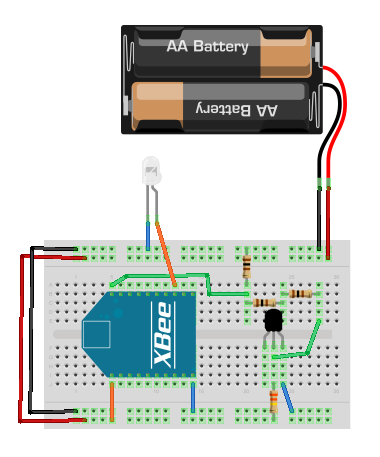
    First off, we’re starting with enabling sleep mode on our end device XBee’s. This essentially will power down our remote devices on a regular cycle to save power and make our network slightly more efficient. We’re going to be using the same thermometer circuit that we worked with last week. Here is a diagram of the circuit you need to (re)build:

    Thermometer Diagram

    In order to enable sleep mode on the device, we’ll have to bring your Router into CoolTerm, and set up a few AT parameters there.

    From here, we’re going to be using the same Processing code to read all the various thermometers. Easy! Done!

    The direct activation project is basically the thermometer project in reverse. Instead of reading from each of the routers, the coordinator (hooked up to a Processing sketch) will be able to turn on and off various devices remotely. Here’s the circuit you’ll want to build:

    Actuator Diagram

    The LED on the board represents the device we’ll want to turn on and off.

    The Processing sketch we’re using can be found on the O’Reilly site here (contains several assets).

     
  • Unknown's avatar

    scottpeterman 11:12 pm on March 10, 2011 Permalink | Reply  

    1/2 way there 

    So I am attempting to talk directly though the xbee coordinator into php, storing to a mysql database, so the info will be live viewable and the sensors will be controllable from the computer or mobile device.

    I worked off of this project using LCDs and xbees

    The toggle switch webpage works like this…

    <html> 
    	<head> 
    		<title>TEST</title> 
           	<style>
    		  p { color:red; margin:5px; cursor:pointer; }
    		  p .toggleon { color:red; margin:5px; cursor:pointer; }
    		  p .toggleoff { color:red; margin:5px; cursor:pointer; }
    		  </style>
    		  <script src="http://code.jquery.com/jquery-1.5.js"></script>
    		</head>
    		<body>
    		  <p class="toggleon">TOGGLE ON</p>
    		  <p class="toggleoff">TOGGLE OFF</p>
    		<script>
    		    $("p").click(function () { 
    		      $(this).addClass("click").load('ledOn.php');
    		 	location.reload();
    		    });
    		</script>
    
    		</body>
    		</html>
    

    (More …)

     
  • Unknown's avatar

    lpercifield 11:10 pm on March 10, 2011 Permalink | Reply  

    Xbee to the interwebs 

    This slideshow requires JavaScript.

    http://lpimaging.net/xbee/dataFile.txt

    This uses a Digi ConnectPort x2 module that connects directly to my xbee module.

     
  • Unknown's avatar

    andywallace 11:05 pm on March 10, 2011 Permalink | Reply  

    Code for today 

    HERE IT IS

    And here are the slides!

     
  • Unknown's avatar

    thisisvictorkim 10:31 pm on March 10, 2011 Permalink | Reply  

    “temperature” sensor graph 

    (note: “temperature” because I still need to adjust my thermometer, so for this example I was using light sensor.  a light sensor may be used for the final iterations)

    sensor values are plotted to randomly plotted circles’ color.  over time this will create a collage of (hopefully) consistent colors.  If the temperature sensor is moved around to different climates then it won’t be a consistent color.  if I add a light sensor, it’ll get variance from the lights in my room being turned and off. so in theory i should get a nice collage of complimentary colors.

     
  • Unknown's avatar

    Bree 8:27 pm on March 10, 2011 Permalink | Reply  

    Surprisingly… 

    http://technabob.com/blog/2011/03/10/ipotti-bathroom-monitor/


    wow. just. wow. O_<

     
  • Unknown's avatar

    Lee 7:24 pm on March 10, 2011 Permalink | Reply  

    visualizing temperature data part1 

    This is iteration / step 1. Get some data from a wireless sensor and write some simple program to visualize it. I started simple since I’m a little rusty with processing. I need to see if there are any XBee libraries for codeBlocks or OF, processing just isn’t going to cut it.

    Anyhow, I started first by building up the look and creating a simple system for how incoming data would affect the chart. I got this setup before even touching my XBee’s, I simulated incoming data with a button press and spitting out a random temperature.

    Once I was happy with the look and feel I worked on hacking it together with all the XBee Sensor Network code which was actually a lot less painful than I imagined it was going to be. I’m not quite sure how to put the XBee’s into sleep mode yet, so the longest interval I could sample at was once a minute.

    I stuck the sensor and battery pack outside my window to track the temperature outside to test it out.

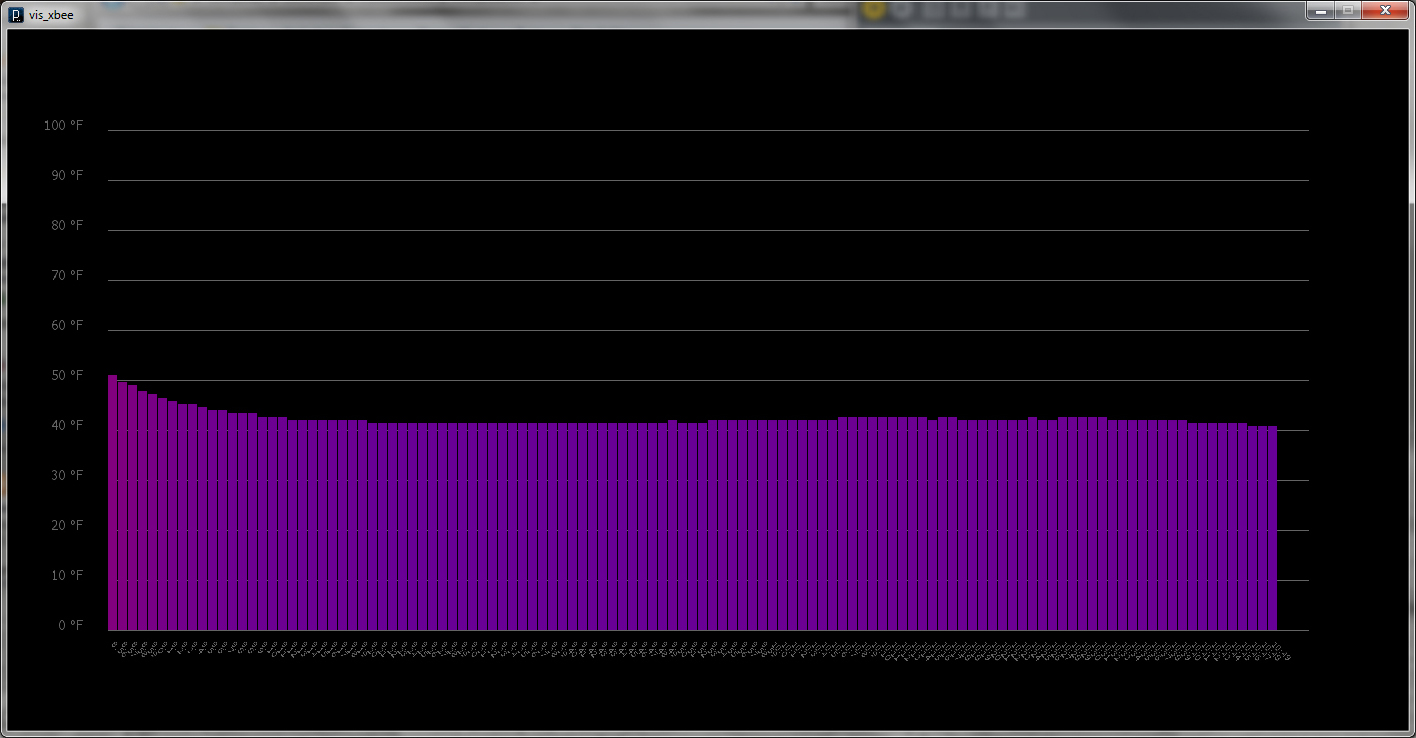
    I scaled up the chart and let it run for two hours.

    The initial warmer temps was residual heat from being inside. I checked my readings against what the internets were telling me was the current temperature and my little sensor proved to be pretty accurate.

    Good stuff so far, next iteration I’ll make a more interesting visualization and pull in data from another sensor or two. I’ll also make the program slightly interactive with some rollover info or make it clickable.

    (More …)

     
c
Compose new post
j
Next post/Next comment
k
Previous post/Previous comment
r
Reply
e
Edit
o
Show/Hide comments
t
Go to top
l
Go to login
h
Show/Hide help
shift + esc
Cancel